
“What games do my teams have this week?”
BenchApp PRO · MCP server
Run your team from Claude, ChatGPT or Grok.
Connect BenchApp to the AI assistant you already use. Ask who's in for Thursday, check a player's stats, or find spares and invite them to your next game, all in plain English.
Connect BenchApp Included with BenchApp PRO
Just ask
Your AI assistant, connected to your team
“Who hasn't responded for Thursday's game?”
“How many goals does Sam have this season?”
“Find the spares who played in the last 3 months.”
“Invite them to our next game.”
“Who's been out the most this season?”
Spares, sorted
Short a player? Invite spares in one sentence.
Ask your assistant to find the spares who have played with you recently and invite them to your next game. BenchApp checks your spare list, skips anyone already invited or already in, and shows you exactly who would get the invite, the fee, and how it will be sent.
Nothing goes out until you say so. Confirm the preview and the invites send the same way they do from the app.
- Only players on your team's spare list can be invited
- You always see a preview before anything is sent
- Uses your team's spare fee and prepay settings
Supported AI assistants
Works with Claude, ChatGPT, Grok, Gemini and more
BenchApp's MCP server works with any AI assistant that can connect to a remote MCP server and sign in with OAuth. These are the ones you are most likely to use today.
AI chat app How to connect Plan and access
Claude (web, desktop and mobile) Add a custom connector under Settings, then Connectors. Every plan. Free includes one custom connector. On Team and Enterprise, an owner adds it.
ChatGPT Turn on Developer mode, then add BenchApp as an app on the web. Plus, Pro, Business, Enterprise or Edu. On Business and Enterprise, an admin enables it.
Grok On grok.com, open Connectors and add a custom connector. On Business and Enterprise, an admin adds it.
Gemini In Gemini on the web, add a custom app under Connected Apps. Personal Google accounts in the US. Not available for work or school accounts yet.
Perplexity Add a custom connector and choose Remote. Pro, Max or Enterprise.
Developer tool How to connect Plan and access
Claude Code
claude mcp add --transport http benchapp https://mcp.benchapp.com/mcp Any Claude Code install. Cursor Add the server URL to your MCP settings. Any Cursor plan.
VS Code with GitHub Copilot Add the server URL to mcp.json. Any Copilot plan. On Business and Enterprise, an admin enables MCP servers.
Plans and availability are set by each AI company and can change. Checked September 2026.
Set up
Connect in under two minutes
https://mcp.benchapp.com/mcp
Copy the server URL
BenchApp's MCP server lives at https://mcp.benchapp.com/mcp. That is the only thing your AI assistant needs.
Add it to your assistant
Paste the URL where your assistant adds connectors or apps, for example Settings, then Connectors in Claude. Call it BenchApp.
Log in to BenchApp
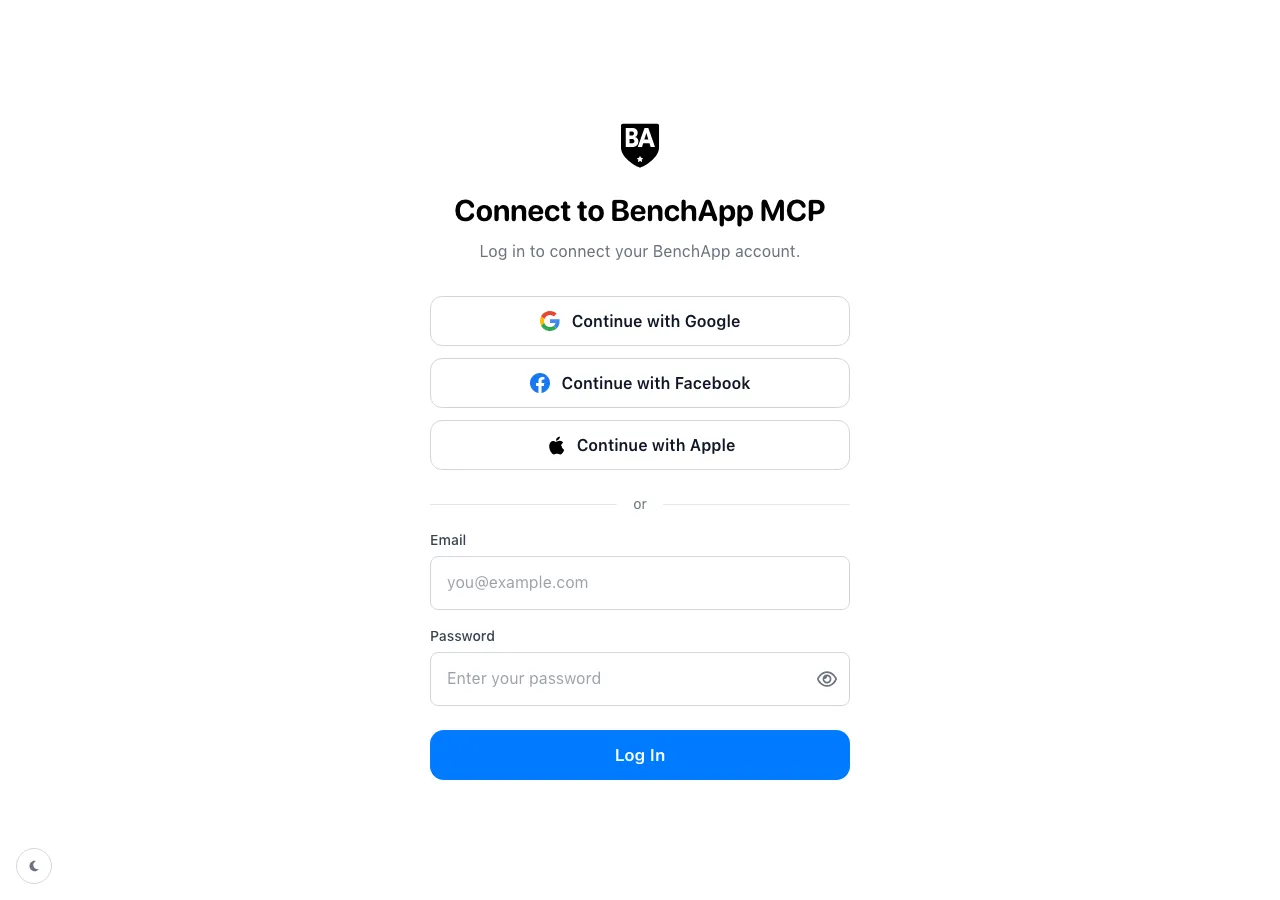
Your assistant opens BenchApp's login page. Log in with Google, Facebook, Apple or your email, the same way you do in the app.
Choose what it can do
Allow access to view your teams, and turn on Invite spares if you want your assistant to send invites for you. You can disconnect at any time from your assistant's settings.
Trust
Built for managers, safe by design
Acts as you, and only you
Your assistant signs in with your BenchApp account and sees the teams you manage. It gets no access you don't already have.
You approve every send
Spare invites always start as a preview. Your assistant can only send what you have seen and confirmed.
Your password stays with BenchApp
You log in on BenchApp's own page. Your AI assistant never sees your password, and you can disconnect it whenever you like.
How it works
What is an MCP server?
MCP, the Model Context Protocol, is an open standard that lets AI assistants use other apps safely. Instead of copying your schedule into a chat, you connect your assistant to BenchApp once and it can look things up and take actions for you.
BenchApp’s MCP server gives your assistant a small set of tools built for team managers: your teams, your schedule, attendance for each game, player stats, and finding and inviting spares. Your assistant decides which tool to use from what you ask, and you see the answer in plain English.
Because MCP is a standard, the same BenchApp connection works across Claude, ChatGPT, Grok, Gemini and the other assistants above. You sign in once with your BenchApp account, and you can disconnect whenever you like.
Frequently Asked Questions
Which AI assistants work with BenchApp?
Any assistant that can connect to a remote MCP server and sign in with OAuth. That includes Claude, ChatGPT, Grok, Gemini and Perplexity, and developer tools such as Claude Code, Cursor and VS Code with GitHub Copilot.
Does BenchApp work with ChatGPT?
Yes. On a Plus, Pro, Business, Enterprise or Edu plan, turn on Developer mode in ChatGPT on the web and add BenchApp as an app with the URL https://mcp.benchapp.com/mcp.
Does BenchApp work with Claude?
Yes. In Claude, add a custom connector with the URL https://mcp.benchapp.com/mcp and log in to BenchApp. It works on the web and in the desktop app, and on mobile once it's added.
Does it work with Microsoft Copilot?
Not yet. Microsoft 365 Copilot only connects to MCP servers that an administrator registers ahead of time. GitHub Copilot in VS Code does work.
Can my AI assistant send messages without asking me?
No. Spare invites always start as a preview that shows who will be invited, the fee and how it will be sent. Nothing goes out until you confirm.
What can the assistant see?
The same things you can see as a manager in BenchApp: your teams, schedules, attendance, rosters, spares and stats. It acts with your account and never gets access you don't already have.
Is there a BenchApp API?
BenchApp's MCP server is the way to connect AI assistants and agents to your BenchApp account. It gives them a set of ready-made tools for schedules, attendance, stats and spares on top of BenchApp's API.
How do I disconnect?
Remove BenchApp from your assistant's connectors or apps settings. The next time you connect, you will log in and choose what it can do again.
Do I need BenchApp PRO?
Yes. The MCP server is a BenchApp PRO feature, turned on per team. It works for any team you manage that is on PRO, which is $9 per month per team, and for teams whose league is on League PRO. You can connect with any BenchApp account, and your assistant will tell you which of your teams need PRO.
New to BenchApp?
Create your team first, then connect your AI assistant. It takes less than 5 minutes.
Create your FREE team No credit card required